Login to the router device. It is advisable to change the default login password of your router. If you don’t know how? Click here.
Bsnl provides mainly 4 types of modem. Type I is the simple ADSL modem, I am using Type II wireless ADSL modem. I don’t know about the other two types. Or you may use your own ADSL modem but before doing that you have to configure your modem.
Open the interface setup where you would find 3 sections as shown:-
1. Internet.

Configure the Asynchronous Transfer mode virtual circuit ( ATM VC ). You can save your current configuration as any of the 8 permanent virtual circuit (PVCO – PVC7). Set the Virtual Path Identifier(VPI) to ‘0’ and Virtual Channel Identifier(VCI) to ‘35’.
Set the Quality of Service(ATM QoS ) to constant bit rate (CBR). You can connect either in the PPPOE or Bridge mode. Select encapsulation as Point to Point Protocol Over Ethernet(PPPOA/PPPOE) mode to avoid dialing the connection every time you connect to the internet.

Set the username/password encapsulation as PPPOE LLC(Logical Link Control) and connection as ‘Always On’. IP address should be set to dynamic or as specified by your ISP. Turn Default Route to ‘Yes’ so that the connection is routed via your modem itself.
2. LAN.

You may change your router IP address in the LAN section. Now setting the DNS can be done in several ways. You may choose auto discoverable, Open DNS*, DNS provided by BSNL or maybe DNS of any other Internet provider. I have used the first option.

*Many of us might like to use Open DNS:
208.67.222.222 (primary)
208.67.220.220 (secondary).
3. Wireless.

If you are using Wireless LAN turn the access point ‘On’ or else it is recommended to turn it ‘Off’ to avoid usage without your knowledge.
Save the Configuration. I have saved it as PVCO.
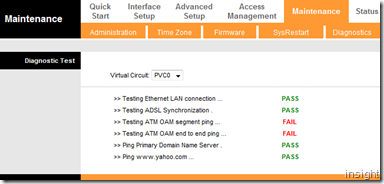
Now go to ‘Diagnostics’ section and check PVCO.

In many cases ATM OAM segment and end to end ping may fail but it won’t be any problem.
Now go to the Status section :-

If you are connected it will automatically retrieve the IP address default gateway and DNS server as shown above. Line state shows the present line state of your telephone or broadband line. It will be ‘Showtime’ for the connection to be Ok.
Try pinging Google server to get a reply. The round trip propagation can be used to analyze your present connection speed.

You are all set for surfing. :)


